Guide
Print a template at actual size
Keep the physical dimensions encoded in a template through the printer dialog and onto the paper.
Reviewed October 27, 2026
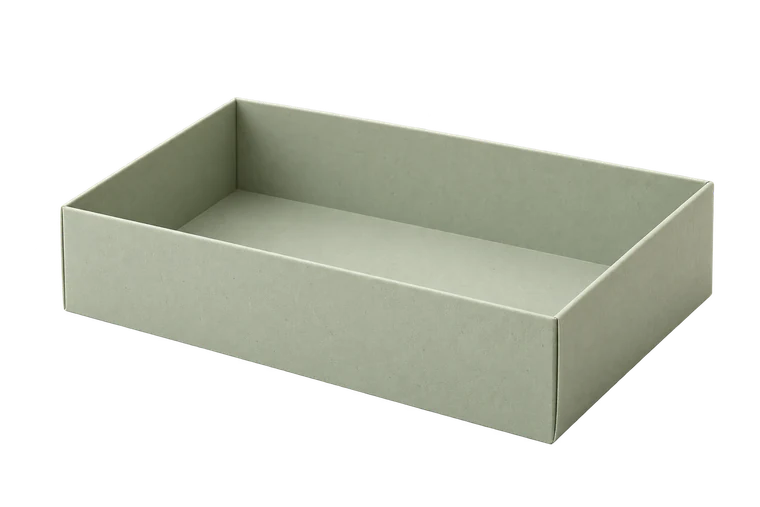
Open tray
Page layout
A4 · 210 × 297 mm2 pagesActual size · 100%
Template 300 × 220 mm
Small grey targets align neighbouring sheets. They may appear inside the template; do not cut along them.
100 mm calibration ruler
Measure the printed 100 mm ruler before cutting.
Measure the printed line, not the screen.
Understand what 100% means
Actual size or 100% asks the print application to preserve the file's physical size. Fit and Shrink can reduce it to the printer's available area. A neatly centred sheet is not proof that the scale is correct.
A 100 mm line that prints as 96 mm has been reduced to 96% of its intended length. The box dimensions shrink with it. Enlarging a preview on your screen does not correct the printed file.
Match the chosen paper
Use the paper size for which the file was prepared. A4 is 210 × 297 mm; Letter is 215.9 × 279.4 mm. Changing paper can change which marks lie inside the printable area even if you retain 100%. Re-export for the new format when necessary.
Margins need to suit your printer. If content is clipped, increase the margins or tile the layout instead of quietly reducing its size. Actual size does not make a printer capable of reaching every edge.
Verify the print before cutting
Print the first sheet and measure the calibration line with a physical ruler. Check two perpendicular directions where useful, since a page should not be distorted. If the ruler is wrong, correct the settings and print again.
For an already tiled FoldParcel PDF, print each existing PDF page on one sheet at 100%. Do not select Poster to tile those pages again. Follow the separate tiling guide only after every sheet has the same correct scale.
Sources and methods
Ready to make something?
Set the dimensions. Check the folds. Make a small test box.